How to Run a Stock Count Your Books Agree With
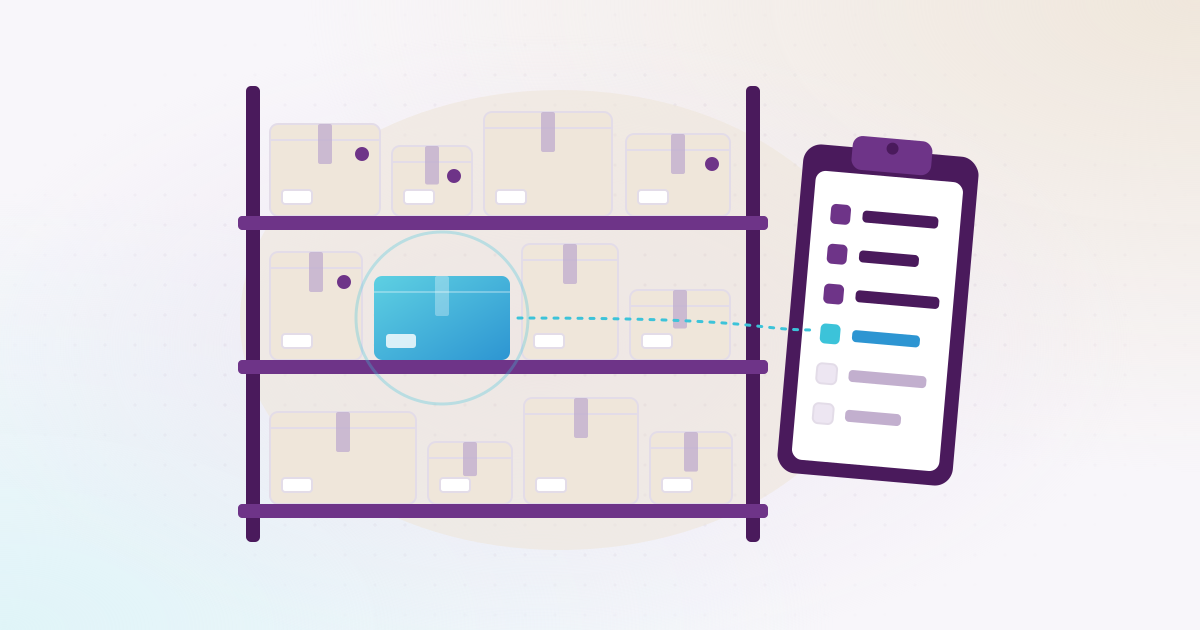
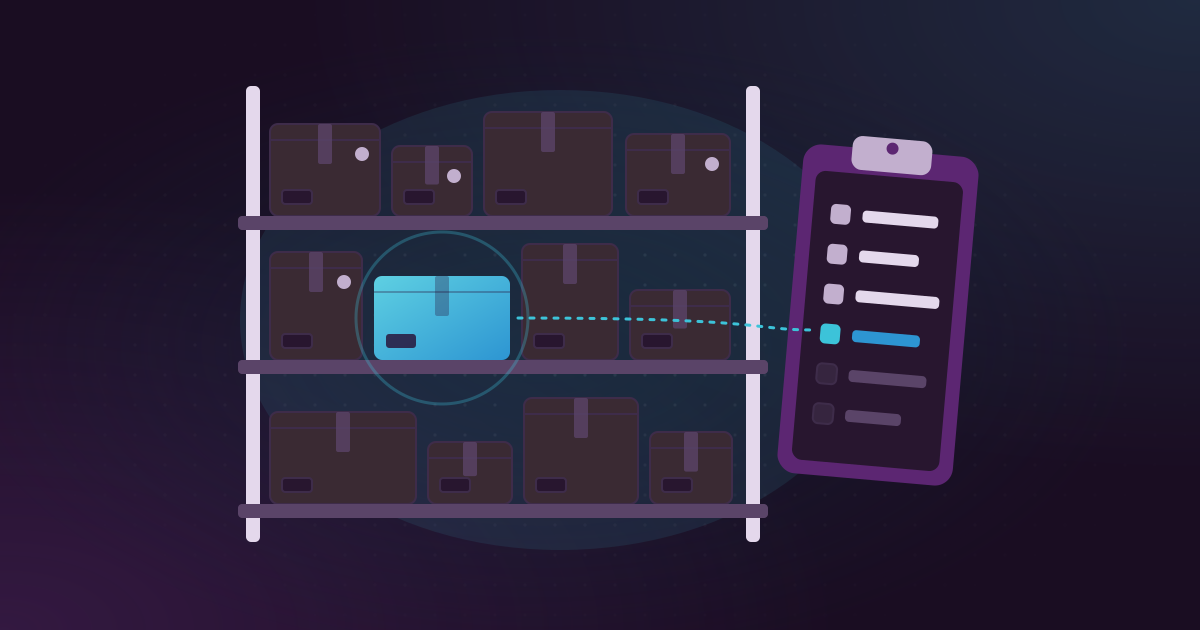
A stock count your books agree with comes from a simple routine: plan the count, stop stock movements while you count, count without looking at the system figure, recount every difference, have a manager approve the result, then post one adjustment that changes stock and accounts on the same date. This is how we see it work for companies in Qatar, from a single shop in Doha to a trading group with warehouses in the Industrial Area.
We are Akwad Programming, an ERPNext company working from our office in Doha, and we set up stock for trading companies, pharmacies and food businesses. This guide is dated: the ERPNext feature names below were checked against the ERPNext documentation on 16 November 2026.
What are the steps of a stock count?
A stock count has eight steps: plan, cut off, freeze movements, count, recount, investigate, approve and post. Skip one and the numbers stop agreeing.
- Plan. Choose the date, the warehouses and the people. Print or prepare count sheets by location (rack, shelf, bin), not by item list, so a counter walks the warehouse once.
- Set a cut-off. Decide the exact time the count reflects, for example Thursday at 6 pm. Every receipt, delivery and transfer before that time must be entered in the system before counting starts.
- Freeze movements. Nothing comes in or goes out of the counted area until the count is done. Goods that arrive are kept aside, unopened.
- Count blind. Counters write what they see. The sheet shows the item and location but not the system quantity, so nobody “finds” the number they expect.
- Recount differences. Any line that differs from the system is counted again by a second person.
- Investigate. Before adjusting anything, look for the paperwork that explains the gap: a late receipt, a transfer not entered, a return left on a desk.
- Approve. The warehouse manager and someone from finance sign off the final quantities and the value of the adjustment.
- Post one adjustment. Enter the counted quantities as of the cut-off time, so stock and accounts change together.
Should you do a full count or a cycle count?
Most companies need both: a full count once a year, usually at year end, and short cycle counts in between. Your auditor will usually ask how the year-end count was done, so keep that one formal.
| What to compare | Full count | Cycle count |
|---|---|---|
| What you count | Every item in every warehouse | A small group of items each time |
| How often | Once or twice a year | Every week or month |
| Does work stop? | Yes, for a day or a weekend | No, only the items being counted |
| Suits | Year-end figures, a new system’s opening stock | Fast-moving and high-value items, problem areas |
A practical cycle: count your fast movers and expensive items every month, everything else every quarter. Pick quiet days. The week before Ramadan or Eid, when stock moves fastest, is the wrong time to count anything.
How do you stop stock moving while you count?
You stop stock moving by agreeing a cut-off time, entering everything before it, and holding new receipts and deliveries until the count is posted. Most count errors start here, not on the shelf.
In practice, tell sales and suppliers a few days ahead. Ask the drivers to bring the vans back and unload, or count the van stock as its own location. Put a sign on goods that arrived after the cut-off and keep them out of the count.
After the count is approved, protect it. ERPNext has a Stock Frozen Upto date in Stock Settings: stock postings on or before that date are blocked, and only the role you choose under Role Allowed to edit frozen stock can change them. Set it to your count date, and nobody can back-date a receipt into a period you have already counted.
Should you count on paper or with a barcode scanner?
Both work; scanners are faster and avoid most writing and typing mistakes, while paper sheets are fine for a small warehouse. What matters more is how you count.
- Count in pairs. One counts, one writes or scans. Don’t let the storekeeper count his own stock alone; add someone from finance or sales.
- Count in the stock unit. If you buy by the carton and sell by the piece, write down which one you counted. Mixing cartons and pieces is the most common mistake we see.
- Count by batch for anything with an expiry date: food, medicine, cosmetics. Write the batch and the expiry date, not only the total.
- Mark what is counted. A sticker or chalk mark on each counted pallet stops it being counted twice.
ERPNext supports scanning directly. In a stock reconciliation you set a default warehouse and switch on Scan Mode, then each scan into the Scan Barcode field adds one to the count without fetching the system quantity first (ERPNext docs). That gives you a blind count by default. Each item can carry several barcodes, one for the carton and one for the piece, so the scanner records the right unit.
Why doesn’t the count match the system?
Most differences come from paperwork, not theft: movements that happened but were entered late, twice or not at all. These are the causes we find most often in warehouses in Qatar:
- Units mixed up. Received as 10 cartons, entered as 10 pieces.
- Transfers by phone. Goods moved from the main warehouse to a branch or showroom on a call, and entered days later or never.
- Van stock. Goods loaded on a sales van that were neither sold nor brought back on paper.
- Returns on the shelf. Customer returns put back without a return note, or damaged goods left in sellable stock.
- Expired goods thrown away without an entry to write them off.
- Late receipts. Goods arrive on a Thursday and the receipt is entered on Sunday, after the count.
- One item, two codes. The same product created twice, once with an Arabic name and once with an English one.
Check these before you adjust. If a transfer explains the gap, enter the transfer; don’t hide it in the count adjustment.
How do you post a stock count in ERPNext?
You post a stock count in ERPNext with a Stock Reconciliation: it sets each item’s quantity to what you counted and posts the difference in value to your accounts. One document can hold a whole warehouse.
According to the ERPNext documentation:
- The Items button fetches the balance and valuation of a warehouse as of a date and time you choose, so you start from the system figures at your cut-off and change only what differs. For a big count, you can fill the downloadable template and upload it.
- The posting date and time can be set to the cut-off, so the adjustment lands in the right period.
- On submit, stock balances update in the stock ledger and the difference in value goes to the Difference Account, which defaults to Stock Adjustment. Finance sees the cost of the count as one clear line.
- The same document with the purpose Opening Stock is how opening quantities are entered when you start on ERPNext.
For batch items, the item needs Has Batch No ticked, and Has Expiry Date and Shelf Life In Days set where goods expire (Item docs). Each batch then shows as Not Expired or Expired (Batch docs), and you count and adjust by batch. Write off expired stock found during the count as its own entry, apart from the count difference, so you can see what expiry cost you this year.
We set this up for Saba Trading Group, with batches, expiry dates and barcodes for each unit across several warehouses, and for Ellora Group, where stock in all warehouses shows in one view and goods move between the group’s companies by stock transfer. Both are typical of how trading and distribution companies in Qatar hold stock. In a pharmacy the same rules apply: for Basma Medical Center, pharmacy stock is tracked with batches and expiry dates.
How do reorder levels help between counts?
A reorder level tells ERPNext the quantity at which an item should be bought again, so shortages show up before the shelf is empty. It only works if the stock figure is right, which is one more reason to count properly.
On each item you set a Re-order Level and Re-order Qty, per warehouse if needed. With Raise Material Request when stock reaches re-order level ticked in Stock Settings, ERPNext creates a material request when stock reaches that level and emails your purchase managers (ERPNext docs). From there the request follows your normal buying steps, which we explain in our guide to the procurement process for companies in Qatar.
What should you do before your next count?
Start small: pick one warehouse or one item group, run a cycle count next week, and write down every cause you find for each difference. Fix those causes in your daily routine first; the year-end count then becomes a check, not a surprise.
If you want stock, counts and accounts in one system, see how we set up ERPNext inventory management for companies in Qatar, or book a demo and bring last year’s count sheet with you.